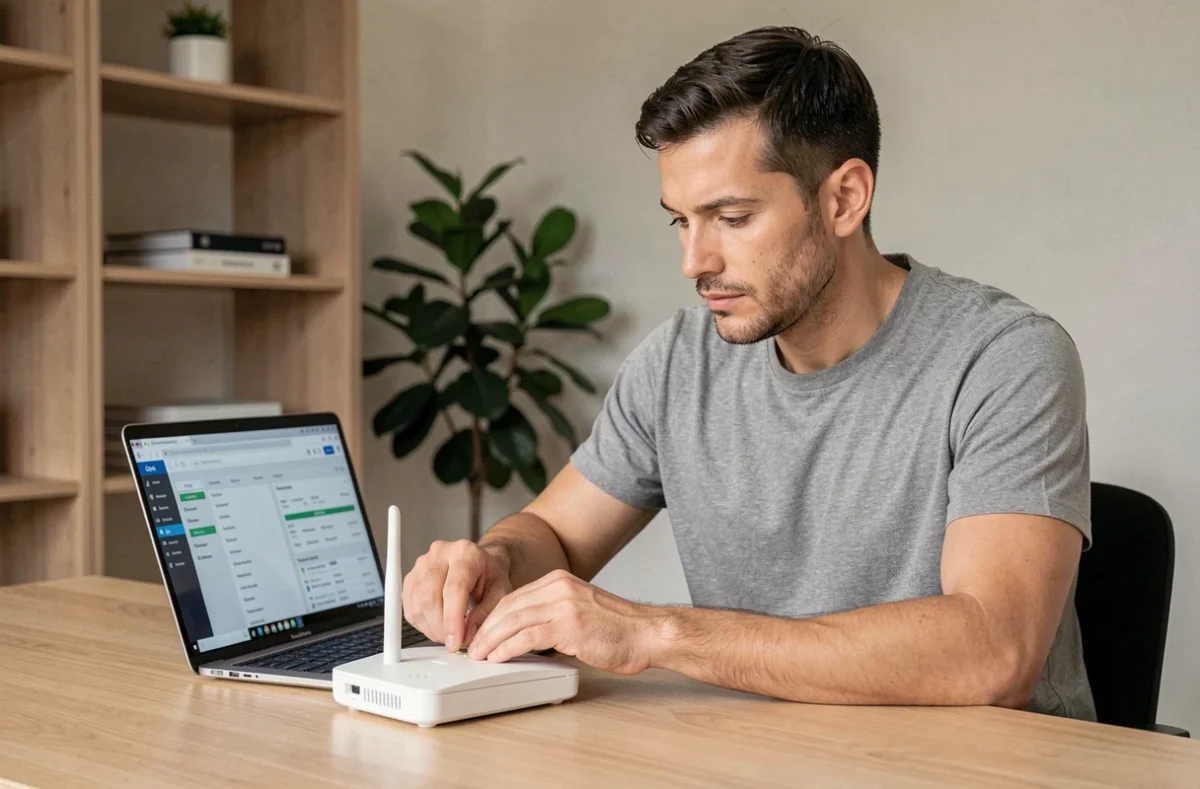
Your Wi-Fi network poorly covers certain rooms, or your EasyWiFi repeater shows “connected” without providing internet access. These two situations often have the same root cause: incomplete configuration or improper placement of the equipment. Properly configuring EasyWiFi is not just about following the installation wizard. The choice of channel, the frequency used, and securing the network determine the actual stability of your connection.
Accessing the easywifi.config interface without blockage
Before making any changes, you need to access the configuration interface of the repeater. On most EasyWiFi models, this interface can be accessed via a browser by typing the address easywifi.config or the local IP address of the repeater in the address bar.
Have you noticed that this page sometimes refuses to display? The problem almost always comes from the same place: your device (phone or computer) is not connected to the Wi-Fi network emitted by the repeater itself, but to your main box. First, connect to the repeater’s SSID before opening the browser.
If the page remains inaccessible, disable mobile data on your smartphone. Android and iOS automatically switch to the cellular network when Wi-Fi does not provide internet access, preventing you from reaching the local interface. A complete guide allows you to configure EasyWiFi on Geeknology by detailing each step according to the repeater model.
Once in the interface, note the IP address assigned to the repeater. It will be useful if the easywifi.config address stops working after a firmware update.
Choosing the Wi-Fi channel and frequency band for EasyWiFi
The majority of throughput issues on an EasyWiFi repeater stem from channel interference. By default, the repeater is set to an automatic channel, often the same as that of your box or your neighbors.
2.4 GHz or 5 GHz: what the frequency changes
The 2.4 GHz band penetrates walls better and covers a greater distance. The 5 GHz band offers higher throughput but its range decreases quickly, especially through thick partitions. The 5 GHz is suitable for rooms close to the router, while the 2.4 GHz is better for distant areas.
In the configuration interface, separate the two bands by assigning them distinct network names (SSIDs). This allows you to force a device to connect to the frequency suitable for its position in the home, instead of letting the repeater choose for you.
Selecting a less crowded channel
In a building, several boxes and repeaters emit on the same channels. On the 2.4 GHz band, the non-overlapping channels are channels 1, 6, and 11. Use a Wi-Fi analysis app on your phone to spot the least occupied channels around you, then force the channel in the EasyWiFi interface.
- Open the “Wireless Configuration” or “Wireless settings” section in the repeater’s interface
- Change the channel mode from “Auto” to “Manual” and select a less used channel in your environment
- On the 5 GHz band, there are more available channels and generally less interference
- Save, then restart the repeater to apply the change
A simple channel change can be enough to restore stable throughput in the rooms covered by the repeater.
EasyWiFi network security: WPA2, WPA3, and mixed mode
Securing the network is an angle that many guides skim over. Setting a password is not enough: the encryption protocol used changes the actual level of protection.
The mixed WPA2/WPA3 mode can reduce the overall security level. This mode exists to ensure compatibility with older devices that do not support WPA3. In practice, an attacker can force the connection to WPA2, thereby bypassing the WPA3 protection. If all your devices are recent, configure the repeater to pure WPA3.
Also, check that Protected Management Frames (PMF) protection is enabled. This option prevents certain forced disconnection attacks targeting home wireless networks. On EasyWiFi repeaters, it can be found in the advanced security settings.
Segmenting the network by usage
If your repeater allows it, create a separate guest network for secondary connected devices (speakers, bulbs, cameras). Segmentation isolates connected objects from the main network, which limits the attack surface in case of a vulnerability on an IoT device.

Placement of the EasyWiFi repeater: the often-ignored rule
Placing the repeater in the room where the signal is weak seems logical, but it is a mistake. The repeater must receive a good quality signal to retransmit it. If it receives a degraded signal, it also amplifies the losses.
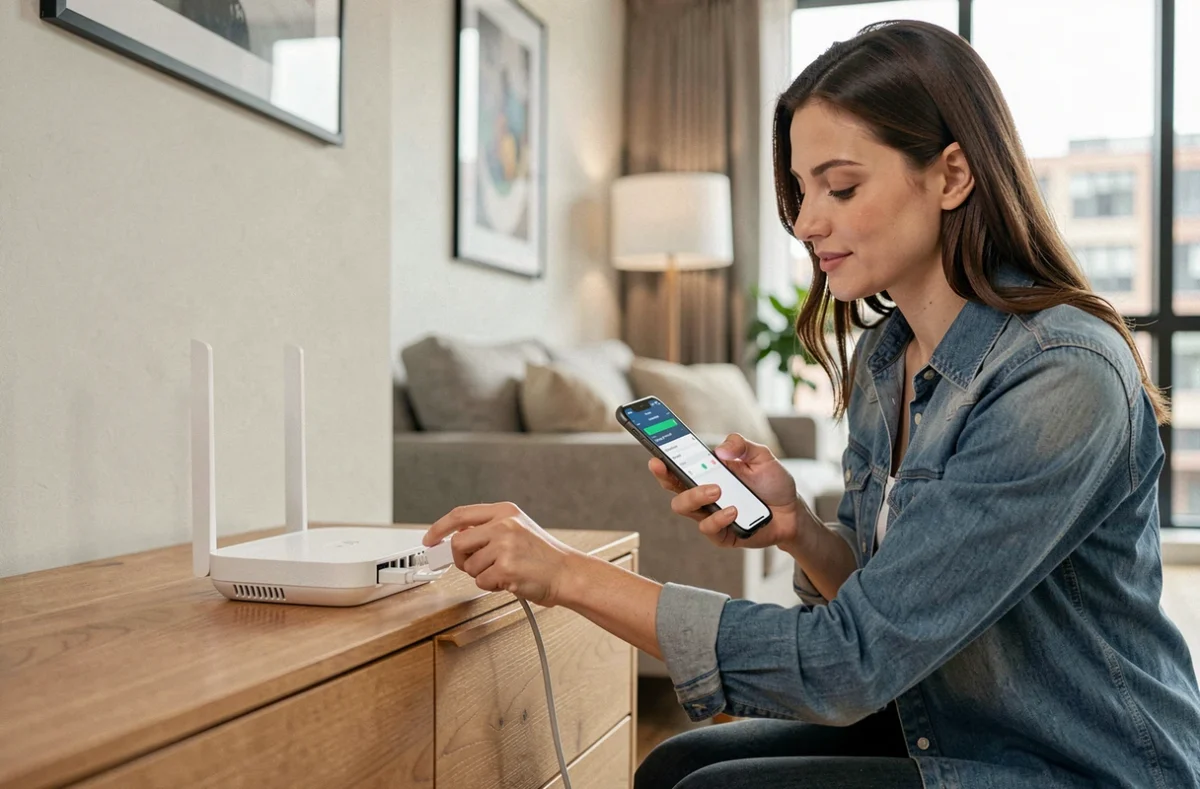
Position the repeater halfway between the box and the poorly covered area. Specifically, install it in a hallway or an intermediate room, at shelf height rather than on the floor. Avoid placing it behind a metal piece of furniture, an aquarium, or a mirror, which reflect or absorb the waves.
A detail often overlooked: some EasyWiFi repeaters have a signal quality indicator. During installation, move the repeater and observe this indicator before permanently fixing its location.
Wi-Fi 6E and Wi-Fi 7: should you change your repeater?
Recent standards like Wi-Fi 6E and Wi-Fi 7 promise higher throughput and less congestion thanks to the 6 GHz band. In France, this band is allowed indoors in the range of 5945-6425 MHz, with regulated power for consumer equipment of the LPI (Low Power Indoor) type.
Before investing, check the compatibility of your devices. A Wi-Fi 7 repeater does not provide any benefit if your laptop and phone only support Wi-Fi 5. The Cisco documentation published in September 2026 specifies that Wi-Fi 7 imposes stricter requirements around WPA3 and cryptographic suites.
- The 6 GHz band is less congested but its penetration through walls is still lower than that of 2.4 GHz
- A poorly positioned 6 GHz repeater quickly loses its throughput advantage
- Update the drivers and firmware of your devices before migrating to a new standard
Check the compatibility of each device before changing your repeater. A well-configured EasyWiFi on the 2.4 and 5 GHz bands covers most current home uses. Migration to Wi-Fi 6E or 7 is justified when the majority of your devices support these standards and your subscription provides sufficient throughput to take advantage of them.